
How to Set Up Tender Alerts on TenderDekho in 2026: AI Search, Smart Alerts & Automated Bid Docs
Finding the right government tender at the right time is one of the most persistent challenges in public procurement. India's procurement ecosystem publishes thousands of opportunities daily across central ministries, state departments, PSUs, railways, defence bodies, and municipal authorities. Manually searching through this volume — day after day — is neither efficient nor scalable for any serious business.
TenderDekho addresses this challenge with a layered intelligence platform that goes far beyond a standard search engine. From an AI-powered keyword extractor that expands your search vocabulary in seconds, to a smart alert engine that monitors live tender feeds on your behalf, to an automated document builder that pre-fills your compliance forms — the platform is built to reduce the time between discovering an opportunity and submitting a compliant bid.
This guide walks through every major feature of the TenderDekho platform in 2026: how to set up powerful alerts, how to use AI to broaden your keyword coverage, how to assess your competition before bidding, and how to generate bid documents automatically. Start exploring live government tenders on TenderDekho to see the full scope of opportunities the platform monitors for you.
Step 1 — AI-Powered Keyword Extraction: Find More Tenders With Less Effort

The first barrier most businesses face when setting up procurement monitoring is keyword selection. Government tenders rarely use the same terminology your business does — a company selling "internet services" may find relevant tenders listed under "broadband connectivity", "fiber optic infrastructure", "digital services", "network services", or "communication services" across different departments and states.
TenderDekho's AI keyword extraction engine solves this directly.
How to use the AI keyword extractor:
- Click the AI button located next to the main search bar on the TenderDekho dashboard.
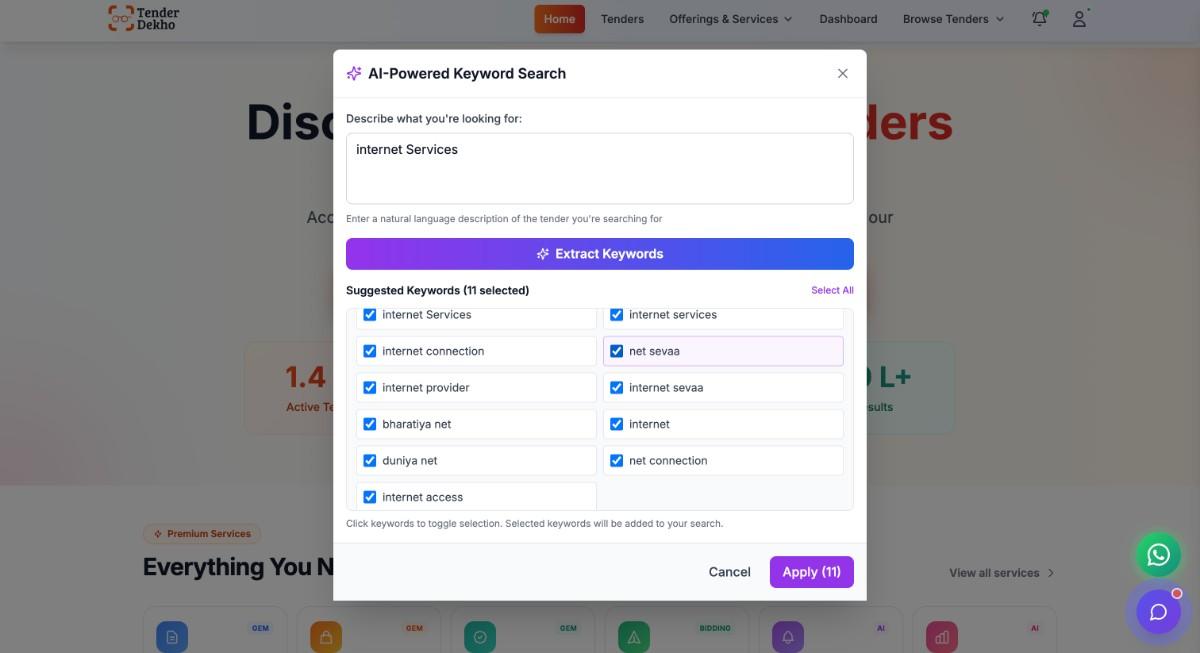
- A prompt window opens. In plain language, describe your core business offering — for example: "Internet services" or "Civil construction works" or "Medical equipment supply".
- Click "Extract Keywords".
- The AI analyses your input and generates a comprehensive list of contextually related industry terms automatically — covering technical variants, abbreviations, and procurement-specific terminology that government departments commonly use.
For an "internet services" input, the system might return: fiber optic, digital services, network services, communication services, broadband, ISP, last-mile connectivity, FTTH, Wi-Fi infrastructure.
Refining your keyword list:
- By default, all suggested keywords are pre-selected to maximise initial search coverage.
- Review the generated list and uncheck any terms that are clearly outside your business scope.
- Click "Apply" to instantly filter the live tender feed to only show results matching your refined keyword set.
This single step typically surfaces 3–5× more relevant tenders than a manual single-keyword search — because it captures the full vocabulary government buyers use to describe the same procurement category across different departments and geographies.
Step 2 — Applying Advanced Filters to Refine Your Results
Once your AI-generated keywords are applied, TenderDekho's sidebar filter system lets you narrow results further using procurement-specific parameters. These filters work in combination — each one added progressively tightens your search to show only the most relevant opportunities.
Available sidebar filters:
| Filter | What It Does |
|---|---|
| BOQ Search | Filter tenders that include a Bill of Quantities — useful for supply-focused businesses |
| Exclude Keywords | Remove tenders containing specific terms that generate false matches |
| States | Limit results to one or more target states |
| Cities | Further narrow by specific cities or districts |
| Organizations | Filter by specific issuing departments, ministries, or PSUs |
| Value Estimates | Set a minimum and maximum estimated tender value range |
Combining these filters with your AI-generated keyword set produces a highly targeted live tender feed — showing only the opportunities that genuinely fit your business profile, geographic coverage, and capacity range.
View active tenders filtered by your sector on TenderDekho to see how these filters work against the live database.
Step 3 — Saving Your Search as a Tender Alert
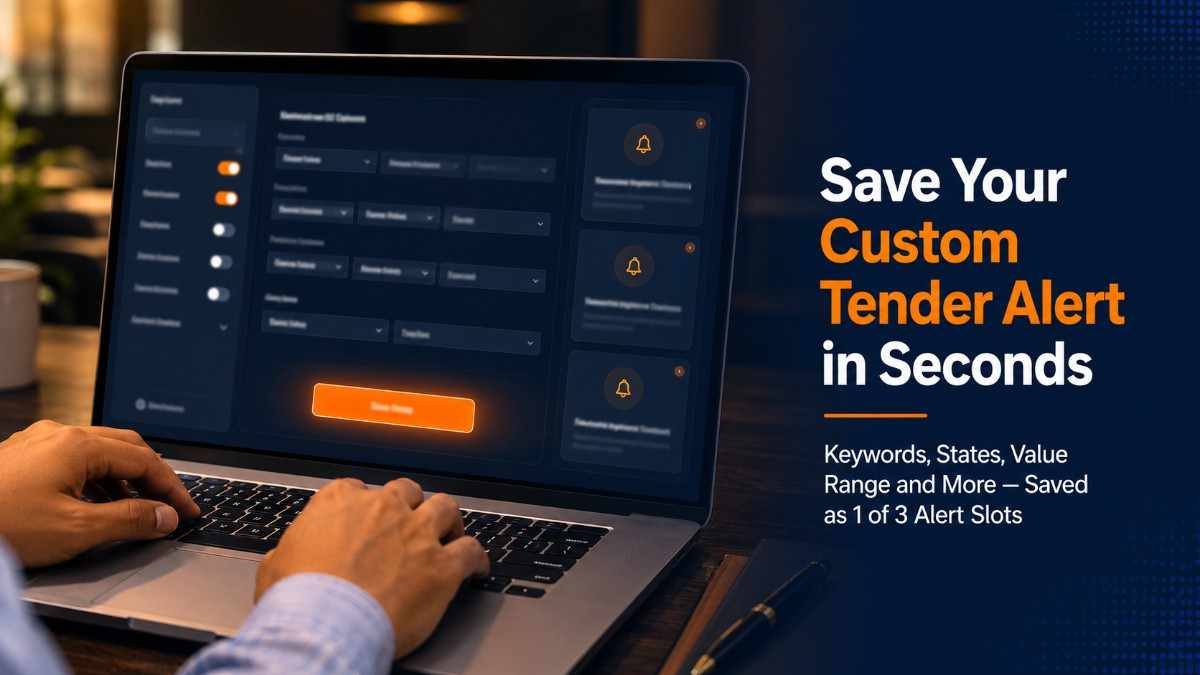
Once your keywords and filters are configured to show the right results, the most important step is saving that search as a live alert — so the platform continuously monitors new tenders on your behalf and notifies you the moment a match is published.
How to save a tender alert:
- After applying your filters and confirming the results look relevant, click "Save Alert".
- If you are not already logged in, the system will prompt a secure account login before saving — standard account credentials with auto-fill support are accepted.
- Your complete filter configuration — keywords, states, cities, organisations, value range, and BOQ settings — is saved as a named alert profile.
- TenderDekho will now monitor every newly published tender against your saved criteria and send you a notification when a match is found.
Understanding the 3-alert limit:
TenderDekho allows up to 3 active saved alerts at any time. This is sufficient for most businesses to cover:
- One alert for your primary product or service category
- One alert for a secondary vertical or adjacent category
- One alert scoped to a specific geography or high-priority state
Overwriting an existing alert:
If you have already used all 3 alert slots and want to save a new configuration, you do not need to delete an old alert first. The interface lets you select an existing alert slot to overwrite — for example, replacing an older saved search with an updated keyword set or revised filter combination. All previous settings in that slot are replaced with the new configuration.
Step 4 — Managing Your Alerts Dashboard
All saved alert profiles are accessible from the Alerts Dashboard — a centralised management tab where you can review, execute, edit, and delete your active tracking rules.
What the Alerts Dashboard shows:
| Column | Information Displayed |
|---|---|
| Alert Name | Label identifying the saved search |
| Active Keywords | The full keyword set saved in this alert |
| Filters Applied | States, cities, organisations, value range |
| Last Triggered | Date the alert last matched a new tender |
| Actions | Apply Filters / Delete |
Key actions available from the dashboard:
- Apply Filters — Re-executes the full saved filter combination instantly, loading the current live results for that alert without reconfiguring anything manually. This is particularly useful for reviewing accumulated matches since your last login.
- Delete — Permanently removes an alert slot, freeing it up for a new configuration.
- Today Filter — A dedicated toggle available on each alert that instantly filters the matched results to show only tenders published on the current date. Use this during your morning review to see only the day's new opportunities without having to scroll past older listings.
For businesses operating across multiple states, maintaining three well-configured alerts on TenderDekho's dashboard replaces what would otherwise require hours of daily manual searching. Explore tenders from Maharashtra and monitor Uttar Pradesh procurement activity — two of India's highest-volume states — to benchmark how much alert-relevant volume flows daily.
Step 5 — AI Bidder Prediction: Assess Your Competition Before You Bid
Once your alerts surface a relevant tender, the next critical question is: who else is going to bid on this? Preparing a detailed bid document is a significant investment of time and resources. TenderDekho's AI-Powered Bidder Prediction feature helps you make that investment decision with real competitive data rather than guesswork.
How to access Bidder Prediction:
- Open any individual tender's detail page.
- Navigate to the "AI-Powered Bidder Prediction" widget on the tender profile.
- Click "Reveal Bidders".
The AI synthesises historical tracking records, past vendor behaviour patterns, and current procurement trends to compile a list of enterprises most likely to bid on that specific tender.
What the prediction output shows:
| Data Point | What It Tells You |
|---|---|
| Vendor Name | Company likely to compete for this tender |
| Location | Geographic base of the competitor |
| Experience | Prior domain experience level in this category |
| Win Rate | Historical win percentage across past bids |
| Past Wins | Total documented wins recorded on the platform |
This intelligence allows you to make a rapid pre-bid assessment:
- Are the likely competitors primarily local vendors or large national firms?
- Do any competitors have significantly higher win rates in this specific category?
- Is the competitive field thin enough to justify the bid preparation investment?
For GeM-registered businesses, TenderDekho's GeM bid participation support can complement this competitive intelligence by helping you prepare stronger, better-positioned bid responses.
Step 6 — Automated Document Generation with Doc Builder
Once you have identified a tender worth pursuing and assessed the competitive landscape, the most time-consuming step is drafting the required legal compliance documents — declarations, certificates, undertakings, and NDA forms. TenderDekho's Doc Builder automates this process.
How to use Doc Builder:
- From any tender's main overview page, click "Generate Docs".
- The platform automatically maps all relevant procurement metadata from the tender — Reference Number, Authority Name, Project Title — directly into the Doc Builder interface.
- The left-hand menu populates a targeted list of the most commonly required compliance documents for that specific tender type.
Documents the Doc Builder generates:
- Bid Security Declaration
- Bidder Turnover Confirmation
- Make in India Self-Certification
- Non-Blacklisting / Non-Debarment Undertaking
- Non-Disclosure Agreement (NDA)
Editing and downloading:
- Selecting any document template renders an instant live preview with the tender's metadata already filled into the legal prose.
- Toggle "Edit" mode to directly modify corporate details, registered addresses, authorised signatory names, or any specialised text blocks inline — without leaving the platform.
- Click "Download PDF" to compile the finalised document and trigger the system print utility to save a print-ready file to your local storage.
Doc Builder eliminates what typically takes 2–4 hours of manual document preparation per tender — formatting legal templates, cross-referencing tender reference numbers, and ensuring all authority details are correctly populated.
If your business is not yet registered on the Government e-Marketplace, TenderDekho's GeM seller registration service can get you set up to access GeM tenders alongside the traditional procurement opportunities tracked by Doc Builder.
Step 7 — Discovering More Opportunities with Similar Tenders
TenderDekho's discovery flow is designed to keep expanding your opportunity pipeline beyond any single listing. At the bottom of every tender detail page, the platform displays a "Similar Tenders" carousel — a curated set of related opportunities identified by overlapping category tags, technical specifications, or buying organisations.
How Similar Tenders helps your business:
- A single tender search can reveal a cluster of related opportunities you would not have found through keyword search alone.
- Clicking "View" on any card in the carousel opens that tender's full dashboard directly — without navigating back to the search results page or resetting your active query.
- Over time, using Similar Tenders alongside your saved alerts builds a broader awareness of which departments and states are actively procuring in your category.
This continuous browsing flow — from one tender to a carousel of related opportunities — mirrors the way government departments actually cluster their procurement, making it far more likely you discover the full set of relevant tenders rather than a single visible listing.
Frequently Asked Questions
Q: How many saved alerts can I have on TenderDekho at one time?
TenderDekho allows up to 3 active saved alerts simultaneously. You can overwrite any existing alert slot with a new configuration at any time without losing the remaining alerts.
Q: Can I use AI keyword extraction even if I don't know the technical terminology for my sector?
Yes. The AI keyword extractor is specifically designed for this scenario. Enter a plain-language description of your business offering and the system generates the full set of technical and procurement-specific terms used across government tender databases.
Q: What is the "Today" filter in the Alerts Dashboard?
The Today filter is a toggle that limits your alert's matched results to tenders published only on the current date. It is the most efficient way to run your daily morning review — isolating fresh opportunities without scrolling through previously seen listings.
Q: Does Doc Builder work for all tender types?
Doc Builder works for standard government procurement tenders and populates whichever compliance documents are most commonly required for that tender type. The available templates include Bid Security Declarations, Turnover Confirmations, Make in India Certificates, Non-Debarment Undertakings, and NDAs.
Q: How accurate is the AI Bidder Prediction?
The prediction engine draws on TenderDekho's historical tracking records and vendor behaviour patterns across the platform's database. It surfaces the enterprises most likely to bid based on demonstrated patterns — past win rates, category experience, and geographic presence. It is a competitive intelligence tool to guide your pre-bid decision, not a guaranteed forecast.
Q: Can I edit documents in Doc Builder before downloading?
Yes. Activating Edit mode inside Doc Builder allows you to directly modify any field — company name, address, authorised signatory details, or custom text blocks — inline within the document preview before generating the final PDF.
Conclusion
TenderDekho's platform transforms government procurement monitoring from a daily manual task into an automated, intelligence-driven workflow. The AI keyword extractor expands your search coverage in seconds. The 3-slot alert engine monitors live tender feeds continuously on your behalf. The AI Bidder Prediction surfaces competitive intelligence before you commit to bid preparation. The Doc Builder eliminates hours of compliance paperwork per tender. And the Similar Tenders carousel keeps your opportunity pipeline expanding beyond any single search.
Together, these features give businesses of every size — from MSMEs to large contractors — a structured, efficient pathway from tender discovery to bid submission. The competitive edge in government procurement increasingly belongs to businesses that find opportunities early, assess competition accurately, and prepare compliant documents faster than their rivals.
Set up your first tender alert on TenderDekho today and put your entire procurement monitoring workflow on autopilot. For further reading on government procurement strategy and sector-specific guides, explore our tender guides and resources hub or contact the team via the TenderDekho support centre.